

The Division 2 system requirements
Tom Clancy's The Division 2 system requirements 2025 - can your PC run Tom Clancy's The Division 2?
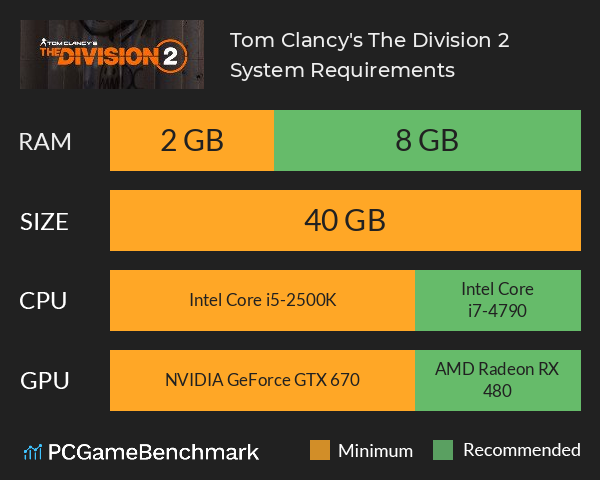
| Minimum | Recommended | |
| CPU | Intel Core i5-2500K | Intel Core i7-4790 |
| Graphics Card | NVIDIA GeForce GTX 670 | AMD Radeon RX 480 |
| RAM | 2 GB | 8 GB |
| File Size | 40 GB | 40 GB |
| OS | Windows 7 SP1, 8.1 or 10 | Windows 10 |
Can you run it? Test your computer against Tom Clancy's The Division 2 system requirements.
Can I Run Tom Clancy's The Division 2?
The cheapest graphics card you can play it on is an NVIDIA GeForce GTX 670. Furthermore, an AMD Radeon RX 480 is recommended in order to run Tom Clancy's The Division 2 with the highest settings. You will need at least 40 GB of free disk space to install Tom Clancy's The Division 2.
To play Tom Clancy's The Division 2 you will need a minimum CPU equivalent to an Intel Core i5-2500K. Whereas, an Intel Core i7-4790 is recommended in order to run it. The minimum memory requirement for Tom Clancy's The Division 2 is 2 GB of RAM installed in your computer.
If possible, make sure your have 8 GB of RAM in order to run Tom Clancy's The Division 2 to its full potential. Maintaining a high frame rate in The Division 2 is very important, particularly if you fancy engaging in some competitive PvP. If you’re having performance issues, there are tons of settings you can tweak to try and squeeze out some extra frames.
Turning down particle detail and volumetric fog can both have a noticeable impact on performance without reducing visual quality too much, as can turning down ambient occlusion and turning off depth of field. For larger improvements, turn off high res sky textures, and turn down terrain, shadow and vegetation quality.
Turning down object detail should have a big effect on your frame rate, but it will significantly reduce the visual quality of the game. Resolution Scale is a good option for maximising frame rate. Turn this down by around 10-20%, and you should get a big boost to frame rate with only a small change in graphical quality.
If you’re still struggling to hit a consistent FPS, consider capping the frame rate at around 30-45.
If you’re using an Nvidia GPU, you can access extra settings. Navigate to “Manage 3D Settings”, then “Program Settings” and select The Division 2. Set the Power Management Mode to “Prefer Maximum Performance”, Vertical Sync to “Fast” and Texture Filtering Quality to “High Performance”.
Tom Clancy's The Division 2 will run on PC system with Windows 7 SP1, 8.1 or 10 and upwards.
Looking for an upgrade? See our graphics card comparison and CPU compare for benchmarks. We'll help you find the best deal for the right gear to run the game.
Tom Clancy's The Division 2 FPS - what frame rate can you expect?
How many FPS will I get on Tom Clancy's The Division 2? An FPS Monitor is the first step in understanding how the parts in your gaming PC are actually performing in real-world conditions. It's the perfect way to track Tom Clancy's The Division 2 FPS drops and stutters.
Download our free tool on Overwolf to count your frame rates as you play, and test how tweaks to your settings can boost FPS and increase Tom Clancy's The Division 2 performance. Our app is compatible with hundreds of the best PC games and available now.
Tom Clancy's The Division 2 Details
| Review Score | 85 / 100 |
| Categories | Action RPG MMO |
| Tom Clancy's The Division 2 Release Date | 5th of March 2019 |
The fate of the free world is on the line in Tom Clancy’s The Division 2. Lead a team of elite agents into a post-pandemic Washington, DC, to restore order and prevent the collapse of the city.